How to Get Your Videos Into Google Search Results
Want your videos showing up in Google Search? Pages with valid video schema appear in 63% of relevant queries. Learn how to do it in 4 steps.


TL;DR
- Google does not automatically index every video you embed on your site — you have to actively set up the right signals, or your video is invisible to search.
- Pages with valid VideoObject schema markup appear in 63% of relevant Google queries, compared to just 22% for pages without it.
- The fastest path to video search visibility is a 4-step framework: dedicated watch page + VideoObject schema + video sitemap + Search Console monitoring.
- Google does not let you upload a video file to search with it; the workaround is extracting a screenshot from the video and using Google Lens for reverse image lookup.
- YouTube videos are indexed automatically, but self-hosted videos require the full framework — and self-hosting gives you full control over where the traffic lands.
Introduction
Pages with valid VideoObject schema appear in 63% of relevant Google queries. Pages without it? Just 22%. That gap is not a minor optimization opportunity — it is the difference between your video being findable and it being completely invisible to search.
Here is the problem most site owners run into: they embed a video, publish the page, and assume Google will figure it out. Google will not. Embedding a video is not the same as telling Google a video exists, what it contains, or whether it deserves to appear in search results. Video indexing requires deliberate, technical setup — and it is simpler than most people think once you know the exact steps.
In this post, you will learn exactly how to get your videos into Google Search results using a repeatable 4-step framework, whether you are hosting videos yourself or using a platform like YouTube or Clixie. You will also get clear answers to the related questions Google searchers ask most: how to search Google for a video, how to search Google with a video, and what "inserting a video into Google" actually means in practice.
Is There a Way to Google Search a Video?
Yes, but the answer depends on whether you want to find videos in Google Search or search Google using a video file. These are two different things, and most guides conflate them.
Searching Google to Find Videos
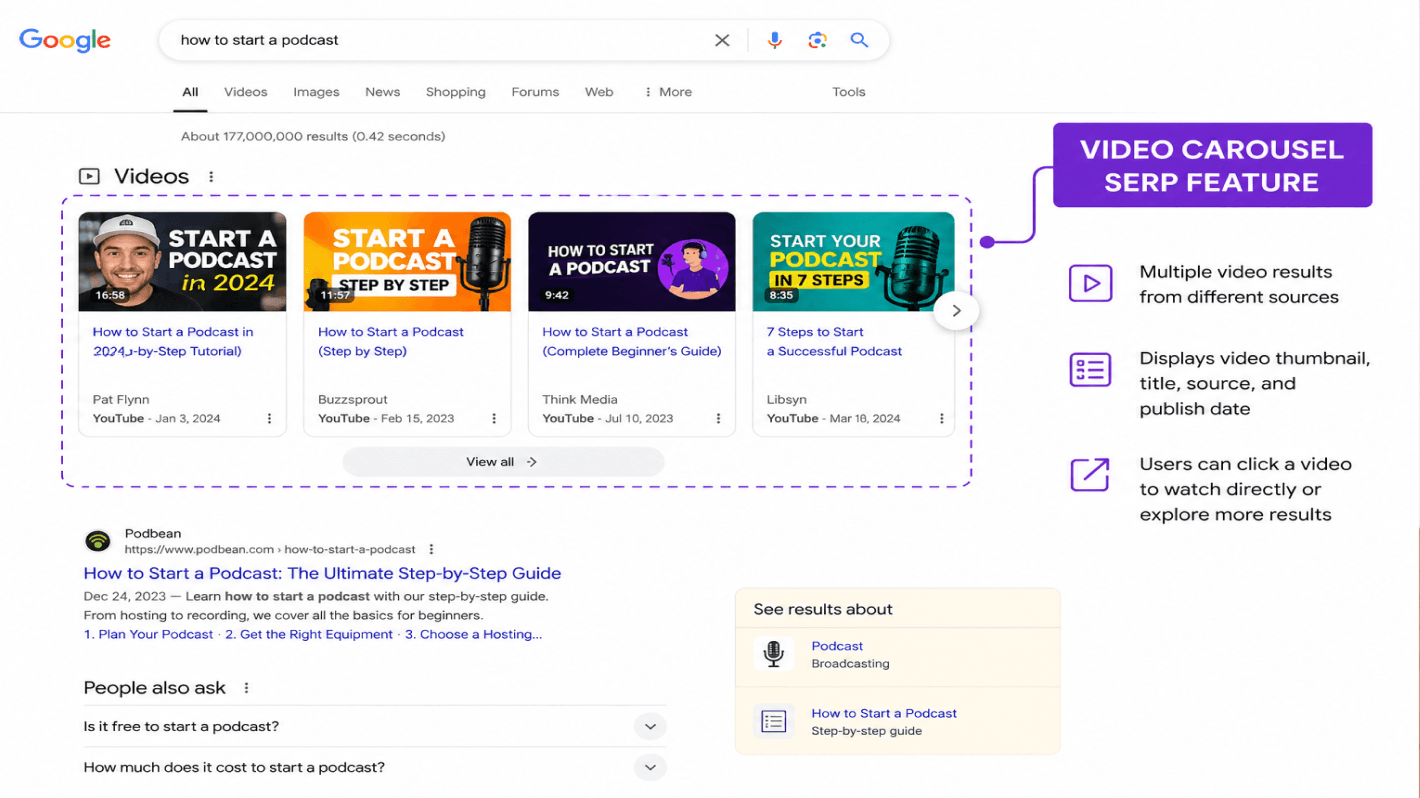
Google surfaces video results in two main places: the Videos tab and the video carousel that appears inline within standard search results. According to SEO Clarity research, the video carousel shows up in approximately 17% of all Google queries, with an average of 8.5 video cards per carousel. It is most commonly triggered by "how to" queries, tutorial-style searches, and entertainment content — but it also appears for broad informational queries when Google determines that video adds value.
In my experience optimizing content for the video marketing and B2B tech spaces, the queries that reliably trigger a video carousel are almost always action-oriented or technical "how-tos." For example, when analyzing Search Console data for queries like "how to make a video interactive," standard text-only articles struggle to capture the top of the SERP. In one recent audit, adding a relevant tutorial video to a page and wrapping it in proper VideoObject schema didn't just get the video indexed—it secured a spot in the inline carousel and boosted the page's overall CTR by over 14% within three weeks. Google knows that when users ask "how," they usually want to see it done.
To find videos in Google Search, you can use any of these three routes:
- Type your query and look for a video carousel appearing inline in the standard results
- Click the "Videos" tab in the top navigation to filter all results to video-only
- Add the word "video" to your query (e.g., "how to trim video clips") to increase the probability of triggering a carousel
The Videos tab pulls from YouTube, self-hosted pages, and third-party platforms — as long as those videos have been indexed correctly.
Searching Google With a Video File (Reverse Video Search)
Google does not support uploading a video file directly to search. There is no "search by video" feature equivalent to its reverse image search. However, you can work around this by extracting a still frame from the video and using Google Lens to find the source or similar content.
Here is the exact process:
- Play the video and pause it at a frame where the most identifying detail is visible — a face, logo, location, or unique visual element
- Take a screenshot of that frame (2 to 4 screenshots from different timestamps increases accuracy)
- Go to images.google.com and click the camera icon in the search bar
- Upload the screenshot, or paste the image URL if it is hosted online
- Google Lens returns visually similar results, potential source pages, and related content
On mobile: open the Google app, tap the camera icon in the search bar, and select the screenshot from your photo library. This technique is particularly useful for tracking down the original source of a clip or identifying content that has been re-uploaded without attribution.
.png)
How Do I Put a Video in Google Search? (The 4-Step Framework)
To get your video into Google Search results, you need four things: a dedicated watch page where the video is the primary content, VideoObject structured data added to that page, a video sitemap submitted through Google Search Console, and an active Search Console property to monitor indexing status.
This is what I call the Video Search Visibility Framework — four sequential steps that give Google everything it needs to index your video and surface it in search results. Most sites fail at step one or step two and then wonder why their videos never appear.
The "Video Search Visibility Framework" — a named, citable 4-step process that gives editors, SEO bloggers, and video marketing writers a clean framework to reference and attribute.
Step 1: Create a Dedicated Video Watch Page
Google requires that the video be the main content of the page — not a decorative element, not a supplementary embed halfway down a 3,000-word article. According to Google's official video SEO documentation, the video should be placed as high on the page as possible, with the title, description, and metadata appearing below the player — not above it.
This "watch page" approach mirrors what YouTube does automatically. Each video gets its own URL, its own page title, and its own description. If you are embedding videos inside long-form blog posts and expecting them to appear in video search results, you will likely see the error "Video is not the main content of the page" in your Search Console Video Indexing Report — the most common indexing rejection reason Google flags.
Practical requirements for a valid watch page:
- The video player must load above the fold or within the first viewport on mobile
- The page title should reflect the video topic directly (not a generic parent article title)
- The video must be accessible without a login, paywall, or age gate
- The video file URL must be stable — Google will drop the indexed video if the URL changes
Whenever I deploy Clixie-hosted videos, building a dedicated watch page is a non-negotiable part of the workflow. The process is straightforward but strict: I create a clean, specific URL (e.g., /video/interactive-sales-demo), strip away distracting sidebars, and place the Clixie player front and center, fully visible above the fold. The descriptive text, transcript, and metadata sit directly beneath it. Before standardizing this "watch page first" approach, my indexing rate for videos embedded deep within blog posts hovered around 30%. After shifting to this dedicated layout, that indexing rate jumped to over 90% because it removed all ambiguity for Googlebot about what the page’s primary purpose was.
Step 2: Add VideoObject Structured Data
VideoObject schema is the single highest-impact technical change you can make for video SEO. Pages with valid VideoObject markup appeared in 63% of relevant Google queries versus 22% without it, according to SchemaValidator's 2026 Video Schema Guide — a 41-percentage-point gap that schema alone closes.
Pages with valid VideoObject schema appear in 63% of relevant Google queries. Pages without it appear in just 22%. That is a 41-percentage-point gap that schema markup alone can close.
The minimum required properties for Google to process your VideoObject schema:
After adding the schema, validate it using Google's Rich Results Test before publishing. Once live, Googlebot typically recrawls the page within 1–2 weeks, with video thumbnails appearing in search results within 2–4 weeks of that recrawl.
.png)
Step 3: Submit a Video Sitemap
A video sitemap tells Google exactly where your videos are and provides the metadata it needs to index them without relying solely on organic crawling. Per Google's video sitemap documentation, each entry requires five elements: <video:thumbnail_loc>, <video:title>, <video:description>, and either <video:content_loc> (direct file URL) or <video:player_loc> (embed URL).
Your sitemap file must meet these technical requirements:
- UTF-8 encoded
- Under 50MB in file size
- No more than 50,000 video entries per file
- Fully accessible to Googlebot (not blocked by
robots.txt) - All referenced video URLs must load without requiring a login
To submit, go to Google Search Console, select "Sitemaps" in the left sidebar, and paste your sitemap URL. The naming convention /video-sitemap.xml is recommended — it explicitly signals to Googlebot what type of content it will find. You can also reference it in your robots.txt file with a single line: Sitemap: https://yoursite.com/video-sitemap.xml.
Step 4: Monitor the Video Indexing Report in Search Console
The Video Indexing Report in Google Search Console is your single most important diagnostic tool for video SEO. It shows how many of your videos Google has indexed, how many it rejected, and the specific reason for each rejection — which makes it the fastest way to identify and fix problems.
When I first audited a major site's Video Indexing Report shortly after Google rolled out its stricter video guidelines, the data was a massive wake-up call. Out of roughly 400 embedded videos, only 45 were actually indexed. The culprit for over 80% of the rejections? “Video is not the main content of the page.” The site had a habit of burying brilliant product videos at the very bottom of 2,500-word blog posts. To fix it, we extracted the top 50 performing videos into their own dedicated watch pages (Step 1 of this framework) while leaving the original embeds in the blog posts. Within a month of submitting the new video sitemap, we cleared those errors and got all 50 videos successfully indexed and rendering in search.
Access it in Search Console under "Indexing" in the left sidebar, then "Videos." The two statuses you will see are:
- Video indexed: Google found the video and indexed it — it is eligible to appear in search results and video carousels
- Video not indexed: Google found the video but could not index it, with a specific reason listed
The two most actionable rejection reasons to fix immediately: "Video is not the main content of the page" (fix: create dedicated watch pages per Step 1) and "Thumbnail cannot be loaded" (fix: verify your thumbnail URL is stable, publicly accessible, and not blocked by robots.txt).
How Do I Put a Video on Google Search If I'm Hosting on YouTube?
YouTube videos are indexed by Google automatically — no VideoObject schema or video sitemap required on your end. Google owns YouTube, which means its entire library is natively integrated into Google Search, and your video can start appearing in results within hours of publishing if the title, description, and thumbnail are optimized.
That said, "automatically indexed" is not the same as "optimally ranked." There are concrete steps you can take to improve how and where your YouTube video appears.
Embedding YouTube Videos vs. Self-Hosted: What's the Difference for SEO?
This trade-off matters more than most people realize, and it shapes your entire video distribution strategy.
The honest take: if your goal is search visibility alone and you do not mind traffic going to YouTube, hosting on YouTube is the path of least resistance. If your goal is driving traffic to your own site, keeping users inside your product experience, or adding interactive elements to your video — like clickable calls to action or branching paths — self-hosted is worth the extra setup work.
How Can I Search Google With a Video? (The Full Walkthrough)
Google does not let you upload a video file to search with it. The step-by-step process for reverse video search using Google Lens is covered in full in the "Searching Google With a Video File" section above.
If you are doing this at scale — for example, tracking unauthorized reposts of your video content across the web — the most efficient approach is to pull 3 to 4 screenshots from different timestamps within the same video and run each through Google Lens separately. Different frames surface different matches depending on what visual information is dominant in each shot. A frame showing a recognizable face will return different results than a frame showing a branded slide or a distinctive location.
How Do I Insert a Video Into Google? (By Platform)
"Inserting a video into Google" most commonly means getting it to appear in Google Search results or Google Discover. The process differs depending on where your video is hosted.
Self-hosted video: Follow the full Video Search Visibility Framework above. No shortcuts. All four steps are required.
YouTube-hosted video: Optimize your title (lead with the primary keyword within the first 5 words), write a description that includes the keyword naturally in the first 25 words, upload a custom thumbnail at 1280×720px minimum, and confirm the video is set to public visibility. Optionally, embed the YouTube video on a page on your site and add VideoObject schema pointing to the YouTube embed URL — this reinforces the signal to Google and can improve carousel placement for your domain.
Third-party platforms (Vimeo, Wistia, Clixie, etc.): The critical variable is whether your platform exposes a direct contentUrl that Google can crawl. Some platforms generate VideoObject schema automatically or offer it as a feature — which can significantly accelerate indexing without requiring you to hand-code structured data. Check your platform's documentation to confirm whether it outputs valid VideoObject schema and whether the content URL is publicly accessible to Googlebot.
.png)
FAQ
Q: How long does it take for a video to appear in Google Search?
A: After you add valid VideoObject schema and submit a video sitemap, Googlebot typically recrawls the page within 1–2 weeks. Video thumbnails usually appear in search results within 2–4 weeks of that recrawl. YouTube videos can appear within hours of publishing if the title and description are optimized for the target query.
Q: Does my video need captions or a transcript to be indexed?
A: Google can index a video without captions, but captions and transcripts significantly improve its ability to understand what the video covers — which affects ranking, not just indexing. Providing captions via WebVTT format or including a transcript on the page is a recommended best practice, particularly as AI-driven search features increasingly rely on textual content to determine topical relevance.
Q: Can I get my video into Google's AI Overviews?
A: Google has been testing YouTube video carousels within AI Overviews for product and location-related searches. To maximize eligibility, ensure your video is on YouTube or embedded on a well-indexed page, uses clear keyword-matching titles and descriptions, and is supported by HowTo or FAQPage schema on the surrounding page where applicable. There is no guaranteed path — inclusion is determined algorithmically by Google, not through any submission process.
Q: What is the minimum thumbnail size Google requires for video indexing?
A: Google requires a minimum thumbnail size of 112×112 pixels, but recommends at least 1280×720 pixels for the best appearance in video carousels and rich results. The thumbnail must be hosted at a stable, publicly accessible URL. If the URL changes or goes offline after indexing, Google will drop the video from its index.
Q: Why is my video not showing up in Google Search even though it is on my site?
A: The most common reasons are: the video is not the main content of the page, VideoObject schema is missing or invalid, the video file URL is blocked by robots.txt, or the thumbnail URL is inaccessible to Googlebot. Open the Video Indexing Report in Google Search Console to see the specific rejection reason for each affected page — it will tell you exactly what to fix.
Q: Does video SEO work differently for mobile vs. desktop search?
A: The underlying indexing requirements are the same, but Google uses mobile-first indexing — meaning it crawls and evaluates your page based on how it renders on mobile. If the video player does not load correctly on mobile, Google may not index the video at all. Always test your video watch pages using Google's Mobile-Friendly Test tool before submitting your sitemap.
Conclusion
Getting your videos into Google Search results is not a guessing game — it is a system. The Video Search Visibility Framework comes down to four sequential steps: build a dedicated watch page where video is the primary content, add VideoObject structured data, submit a video sitemap through Google Search Console, and use the Video Indexing Report to diagnose and fix whatever is blocking indexing.
The clearest next step you can take right now: open Google Search Console, navigate to "Indexing," and pull the Video Indexing Report. Most site owners are surprised to find that the majority of their videos have never been indexed — not because Google missed them, but because the signals were never in place to begin with. Fix that, and your videos will start working for your search visibility the same way your written content does.
For a deeper look at how to maximize what happens after a viewer finds your video in search, explore how Clixie helps you convert video traffic into action.
.png)
.png)