


How to Stop the YouTube Overlay: Disable Floating Windows, Pop-Ups, and Stuck Controls
YouTube overlay won't go away? Diagnose miniplayer, PiP, end screens, and stuck controls — then apply the official fix on desktop, iPhone, or Android.


TL;DR
- "YouTube overlay" is five different UI elements — miniplayer, picture-in-picture, end screens, info cards, and stuck player controls.
- Each one has its own off switch; no single setting disables all of them.
- YouTube added an official Hide button for end screens in September 2025 — per video, not permanent.
- If controls won't disappear in the mobile app, the cause is often the Accessibility Player toggle in YouTube settings.
- Desktop, iOS, and Android each have different fix paths — pick the platform that matches your problem.
Key Takeaways
- YouTube Miniplayer is a small persistent player that keeps videos playing while you browse the site or app.
- Picture-in-Picture (PiP) is a floating window that continues video playback after you leave the YouTube app.
- End screens are clickable overlays creators add to the final 5 to 20 seconds of a video to promote other content.
- Info cards are small teaser overlays that surface mid-video and can be minimized but not globally disabled.
- Accessibility Player is a YouTube setting that intentionally keeps player controls visible longer for assistive use.
- Interactive video is a video format that lets the viewer click, branch, or respond inside the player — see interactive video defined.
Introduction
Many older "stop the YouTube overlay" guides still focus on browser extensions. That advice is incomplete. In September 2025, YouTube rolled out an official Hide button that dismisses end-screen overlays with one click. And that's only one of five overlays you can turn off without an extension.
The deeper problem is that "YouTube overlay" can mean at least five different UI elements. Telling someone to "disable the YouTube overlay" without knowing which one is like telling them to "fix the car." The miniplayer is not the end-screen pop-up. The end-screen pop-up is not the stuck player controls. Each has its own off switch.
This post diagnoses which overlay you're seeing. It gives the official fix for each on desktop, iPhone, and Android. Sources link inline to first-party YouTube and Google Help docs plus recent reporting. (Note: PAA, AI Overview, and exact ranking data could not be checked with the tools used here.)
If you use YouTube embeds for demos, training, or sales videos, the second half explains why these overlays keep fighting your conversion path. It's worth knowing how YouTube's interactive features compare to platforms built for real interaction.
Tired of fighting YouTube's UI? See what a real interactive video player can do — book a Clixie demo.
What does "YouTube overlay" actually mean?
"YouTube overlay" is a catch-all for five UI elements: the miniplayer, picture-in-picture, end screens, info cards, and persistent player controls. Each has its own off switch.
Before you try a fix, find which one you see. This table maps the symptom to the official setting.
What you seeWhat it's calledWhere to fix itSmall video stuck in a corner that keeps playing as you scrollMiniplayerClick the X (no global off switch)Floating video that appears after you leave the YouTube appPicture-in-Picture (PiP)Settings → Playback → toggle offThumbnail grid covering the final 5–20 seconds of a videoEnd screenTap the "Hide" button (top-right)Small "i" icon popping up mid-video with a teaser cardInfo cardTap to minimize; no global offPlay, pause, and seek controls that never fade awayAccessibility PlayerSettings → Accessibility → toggle off
YouTube overlays aren't one problem — they're five. Diagnose which overlay you're seeing (miniplayer, PiP, end screen, info card, or stuck controls), then apply the official, platform-specific fix. The September 2025 Hide button finally gives viewers control over end screens — but only on a per-video basis.
From the Clixie team: The recurring issue we see with YouTube embeds is control. Teams want a clean viewing experience, but YouTube adds interface behavior they did not design: floating players, recommendation overlays, info cards, and controls that can block the video itself. That matters most in product demos and training videos, where the viewer needs to focus on the exact screen, workflow, or step being shown. The fix is not only removing an overlay. It is choosing a player where the interface supports the goal of the video.
How do I disable the YouTube floating window (miniplayer) on desktop?
To close the desktop YouTube miniplayer, hover over it and click the X icon in its top-right corner. To prevent it appearing, avoid right-clicking a video and choosing "Miniplayer."
The miniplayer is the small floating player that keeps a video running while you browse YouTube. Per Google's miniplayer documentation, it activates when you right-click a playing video and pick "Miniplayer." Drag or resize it from a corner.
Three things to know:
- There is no global setting to disable the miniplayer on desktop. It only shows up when you trigger it.
- It does not work for Shorts or videos made for kids. Google's documentation confirms this.
- If you close it, your video is still in your watch history. Reopen it from there.
If the floating window sits outside the YouTube tab — over other apps — that's picture-in-picture, not the miniplayer.
How do I stop the YouTube overlay on Android (mobile miniplayer)?
To dismiss the YouTube miniplayer on Android, tap the top-right of the miniplayer to close it. The video stops immediately for non-Premium users when the miniplayer is hidden.
On the Android YouTube app, the miniplayer works differently from desktop. Per Google's mobile miniplayer docs, it pops up when you tap the back button or swipe down during a video.
To dismiss it:
- Tap the top-right side of the miniplayer to close it.
- Or tap the video itself to return to the full watch page.
- To move it, touch, hold, and drag it.
Caveat for creators: for non-Premium users, playback pauses for all content — ads included — when the miniplayer is hidden. Background play is a Premium feature.
How do I turn off picture-in-picture on iPhone and Android?
To turn off picture-in-picture, open the YouTube app, tap your profile, go to Settings → Playback, then toggle Picture-in-Picture off. This works on iPhone and Android.
Picture-in-picture is the floating window that keeps playing after you leave the YouTube app. It persists across the device.
On iPhone (iOS 15 or later)
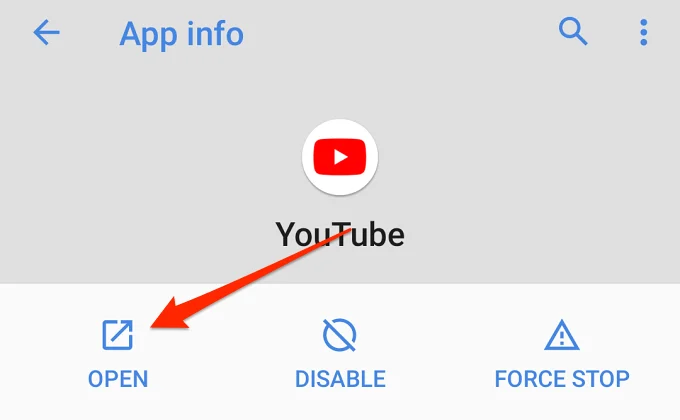
Per Google's PiP docs for iOS:
- Open the YouTube app and tap your profile picture (top right).
- Tap Settings → Playback.
- Toggle Picture-in-Picture off.
If PiP still launches when you leave YouTube, the device-level setting may override the app:
- Open the iOS Settings app.
- Tap General → Picture in Picture.
- Toggle Start PiP Automatically off.
Note: music content (music videos, Art Tracks, covers) requires YouTube Premium.
On Android
The path is similar, per Google's PiP docs for Android:
- Open the YouTube app and tap your profile.
- Tap Settings → Playback.
- Toggle Picture-in-Picture off.
If that doesn't work, override at the system level: Settings → Apps → YouTube → Advanced → Picture-in-picture → Allow (toggle off).
How do I remove the YouTube end-screen overlay? (September 2025 update)
To remove the YouTube end-screen overlay, tap the Hide button in the top-right of the player when the end screen pops up. YouTube rolled this out worldwide in September 2025.
End screens are the clickable overlays that cover the final 5 to 20 seconds of many YouTube videos. Creators use them to promote videos or prompt subscriptions.
In a post on the YouTube blog, Creator Liaison Rene Ritchie confirmed viewers can hit Hide to dismiss end screens for the current video, then Show to bring them back. Android Police reported the rollout reached mobile and desktop in late September 2025.
Three things to know:
- The Hide button is per-video only. It does not persist. You'll click Hide on each video where end screens appear.
- YouTube Premium does not remove end screens. Premium removes ads, not creator-controlled overlays.
- Creators cannot turn the Hide button off. It's a viewer-side feature.
If you're a creator who relies on end-screen CTAs, this changes the math. YouTube's data, in the blog post, found viewers hiding end screens led to under a 1.5% drop in views from end-screen recommendations in global testing. Small in aggregate — real if your CTAs sit there. Consider subscribe buttons that don't get hidden.
From the Clixie team: For B2B videos, the problem with end-screen CTAs is timing. They appear after the main value has already passed, often when the viewer is ready to leave. A stronger pattern is to place the next step inside the video at the moment the viewer shows interest. That might be a product-feature click, a branching choice, or a timed CTA tied to the topic being explained. This gives the viewer a relevant action before YouTube's recommendation grid competes for attention.
Why won't my YouTube overlay go away? (Stuck controls / Accessibility Player)
If YouTube's player controls won't disappear in the mobile app, the cause is often the Accessibility Player setting. Toggle it off under Settings → Accessibility, and controls fade normally again.
This is the overlay most people search for when they ask "why won't my YouTube overlay go away." It's the play, pause, seek, and full-screen icons that refuse to fade out. Per Google's accessibility docs, the Accessibility Player keeps controls visible for viewers who use assistive features. It can be enabled by accident or triggered by system-level accessibility settings.
To turn it off:
- Open the YouTube app and tap your profile picture.
- Tap Settings → Accessibility.
- Toggle Accessibility Player off.
- Restart the video; controls should fade.
To keep the Accessibility Player on but adjust the timeout, HelpDeskGeek's guide notes the max in-app auto-hide is 30 seconds. To go longer, open Android Settings → Accessibility → Time to take action and pick a longer wait. This also affects system notifications, not just YouTube.
On desktop, persistent controls are usually caused by a browser extension — accessibility tools, video controllers, or older ad blockers. Disable them one at a time to find the culprit.
When the real problem isn't the overlay — it's YouTube
If you're fighting YouTube's overlays because you host product demos, training, or sales videos there, the deeper issue is YouTube wasn't built for those jobs.
The miniplayer, PiP, end screens, info cards, and Accessibility Player all serve YouTube's goals: more time on platform, more clicks on recommendations. None serve your goals during a demo.
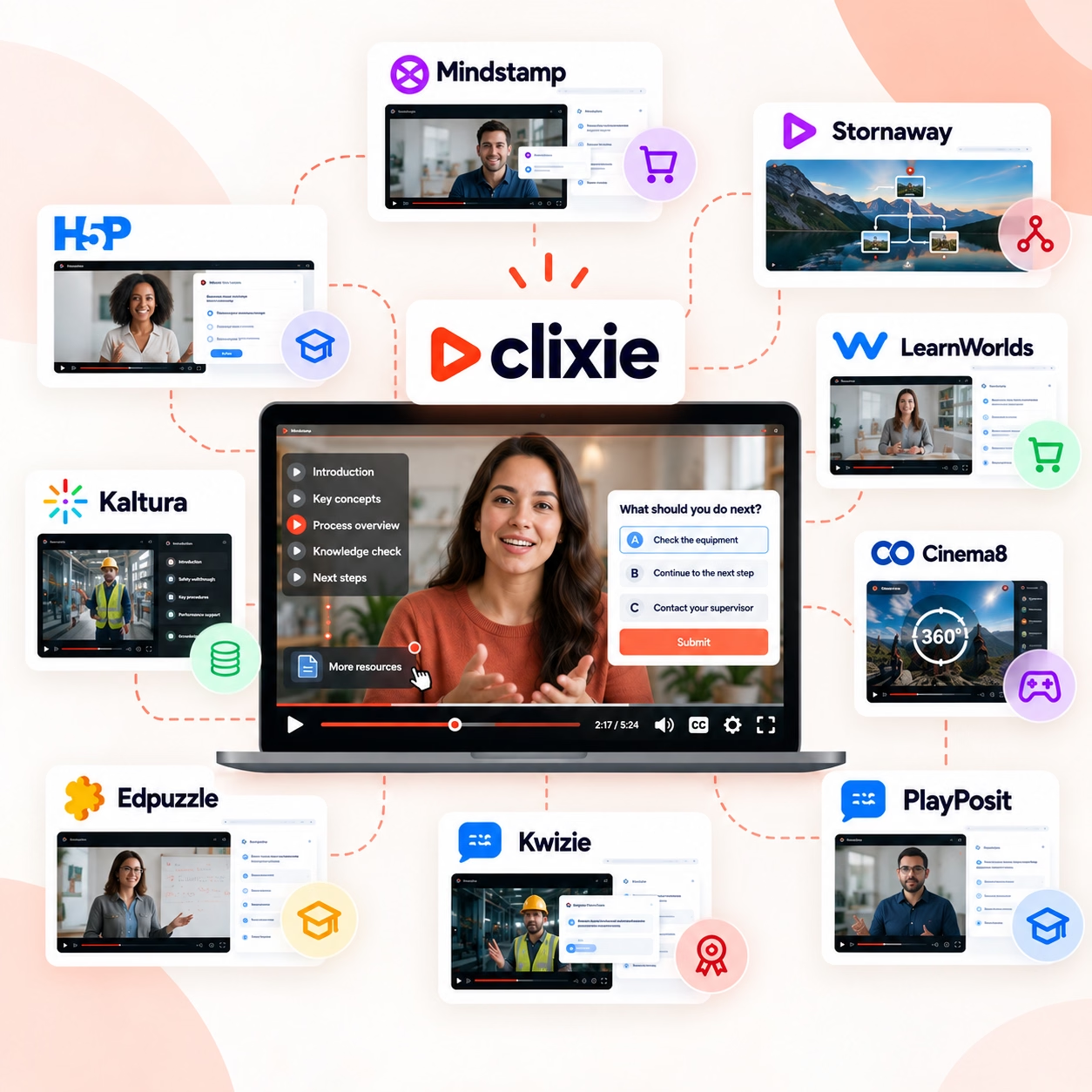
Here's what changes when you use a player built for active viewing:
- Pre-watch. The viewer picks the topic or feature they want before starting.
- During the video. The viewer clicks branching choices, answers a check, or hits a CTA at the moment of interest.
- Intent capture. Every click is a data point: which feature they cared about, where they dropped off.
- Branching paths. Different viewers see different versions of the same video.
- Sales handoff. Interest signals flow to a CRM, inbox, or learning system without leaving the player.
You can build an interactive video from scratch without re-shooting. The interactive layer sits on top of your video.
A dedicated interactive layer also changes what a team can learn from video. With a standard YouTube embed, most of the signal comes from broad metrics like views, watch time, and clicks after the video. With an interactive player, the useful signals happen inside the viewing experience: what path the viewer chose, which CTA they clicked, where they paused, and which topic pulled them forward. That is more useful for sales and training teams than waiting for a single end-screen action.
Want to see what your demo looks like with branching instead of an end-screen overlay? Get a Clixie interactive video template based on your topic.
FAQ
How do I stop the YouTube overlay?
First identify which overlay you see — miniplayer, picture-in-picture, end screen, info card, or stuck player controls. Each has its own off switch.
Click the X to close the miniplayer. Turn PiP off under YouTube app Playback settings. Tap the new Hide button to dismiss end screens, tap info cards to minimize them, and turn off the Accessibility Player to fix stuck controls.
How do you turn off the overlay on YouTube?
You turn off a YouTube overlay differently depending on the type — there is no master switch.
For PiP and the Accessibility Player, go to Settings in the YouTube app. For end screens, tap the new Hide button that appears top-right when the end screen plays. For the miniplayer, click the X. Tap info cards to minimize.
Why won't my YouTube overlay go away?
Your YouTube overlay often won't go away because the Accessibility Player setting is on in the mobile app. Open the YouTube app, tap your profile, go to Settings → Accessibility, and turn off the Accessibility Player toggle. On desktop, the cause is usually a browser extension — try disabling extensions one by one.
How do I disable the YouTube floating window?
To disable the YouTube floating window, find out whether it's the miniplayer or picture-in-picture. The miniplayer closes with the X. PiP turns off under YouTube app Settings → Playback → Picture-in-Picture. On iOS you can also disable it in Settings → General → Picture in Picture.
How do I remove the overlay screen?
To remove the YouTube end-screen overlay, tap the Hide button that appears top-right when the end screen starts, in the final 5 to 20 seconds. YouTube rolled this out in September 2025. The setting resets on each new video.
Does YouTube Premium remove end-screen overlays?
YouTube Premium does not remove end-screen overlays. Premium removes ads and unlocks background play and offline downloads. Creator-controlled elements like end screens, info cards, and channel watermarks stay. Only the per-video Hide button dismisses end screens.
Can creators force YouTube overlays to show?
Creators control whether end screens, info cards, and watermarks appear on their videos in YouTube Studio. They cannot force viewers to see them. Viewers can dismiss end screens with the Hide button and minimize info cards.
Conclusion
Five overlays, five fixes. Bookmark the diagnostic table above and you won't search "how to stop the YouTube overlay" again.
If you found this article because viewers keep dismissing your CTAs, hiding your end screens, or zoning out during demos, the overlay isn't really the problem. YouTube was built to keep viewers on YouTube.
Every overlay either points to another video or hands control back to the feed. If you need a player that serves your outcomes, you need a different tool. See what YouTube analytics leave out.
Book a Clixie demo and bring one stuck deal — we'll show you what that video looks like with branching, timed CTAs, and intent capture instead of overlays.
.png)
.png)



.avif)
