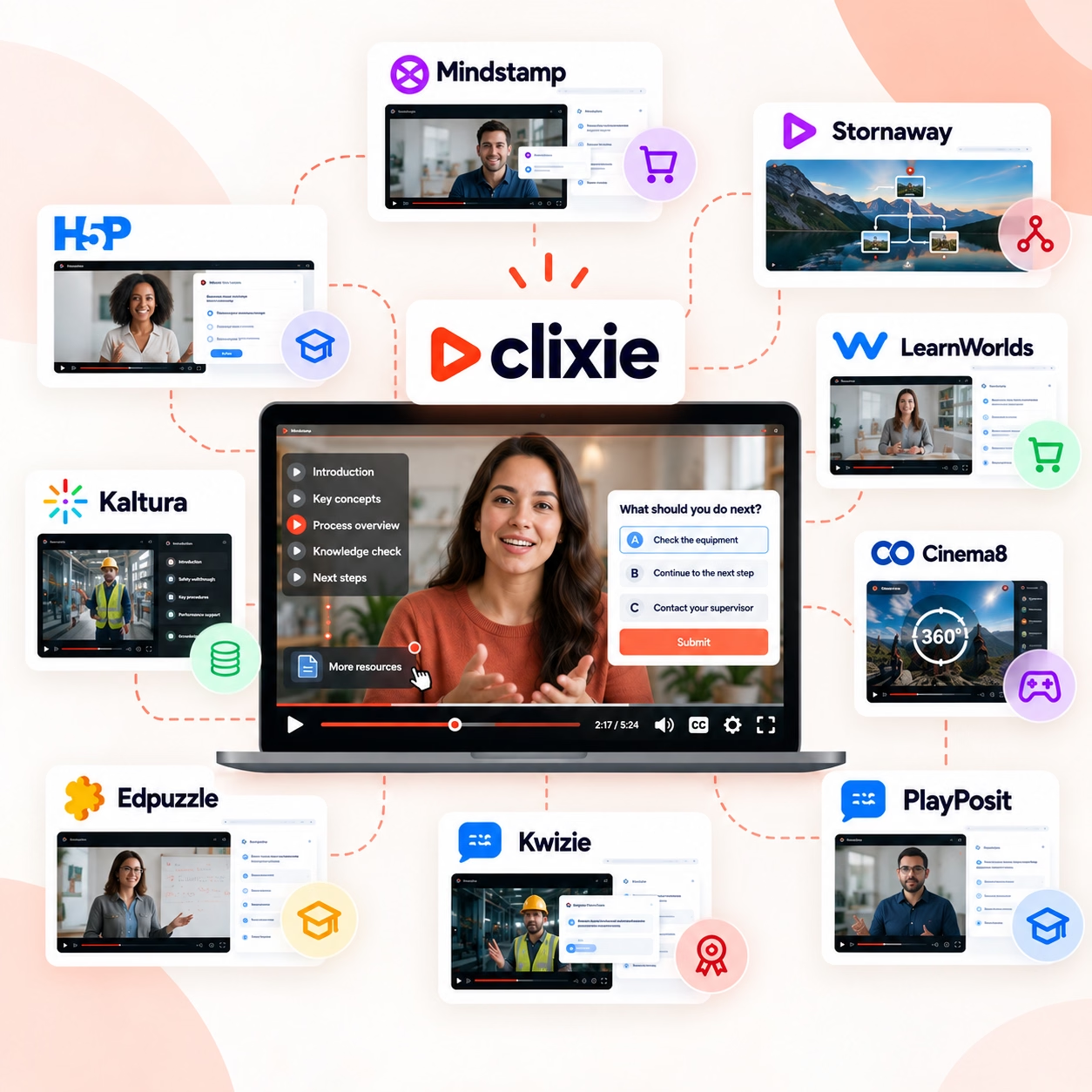
How to Add SCORM Interactivity to Existing Training Videos
Add SCORM interactivity to existing training videos without re-recording. Two routes, a 5-step Clixie AI walkthrough, LMS compatibility tips, and a troubleshooting table.



Most SCORM guides assume you're starting with a blank slide deck. They walk you through Articulate Storyline, iSpring Suite, or Adobe Captivate — authoring tools built around creating content from scratch. But what if your videos already exist?
Your library might have 50 recorded webinars, 200 product demos, or three years of compliance walkthroughs. Re-recording them isn't realistic. What you need is a way to add SCORM interactivity to the videos you already have — without touching the original files.
That's exactly what this guide covers. You'll learn what SCORM actually tracks in a video context, why raw video files can't talk to your LMS, and two practical routes for making any existing video SCORM-compliant. One of those routes takes about 20 minutes per video.
Key Takeaways
- Non-interactive training videos had a 60% average completion rate in 2024, compared to 90% for interactive formats (Research.com, citing Learning Management System Insights, 2024).
- A raw MP4 or video URL cannot communicate with an LMS — SCORM requires a JavaScript API wrapper and an imsmanifest.xml package file.
- Two routes exist: rebuild inside an authoring tool (Articulate, iSpring), or overlay interactivity on the original file using a platform like Clixie AI.
- SCORM 1.2 is the safer choice for most organizations — it has wider LMS compatibility than SCORM 2004.
- Test every SCORM package with SCORM Cloud before uploading to production.
What Does SCORM Actually Track in a Video?
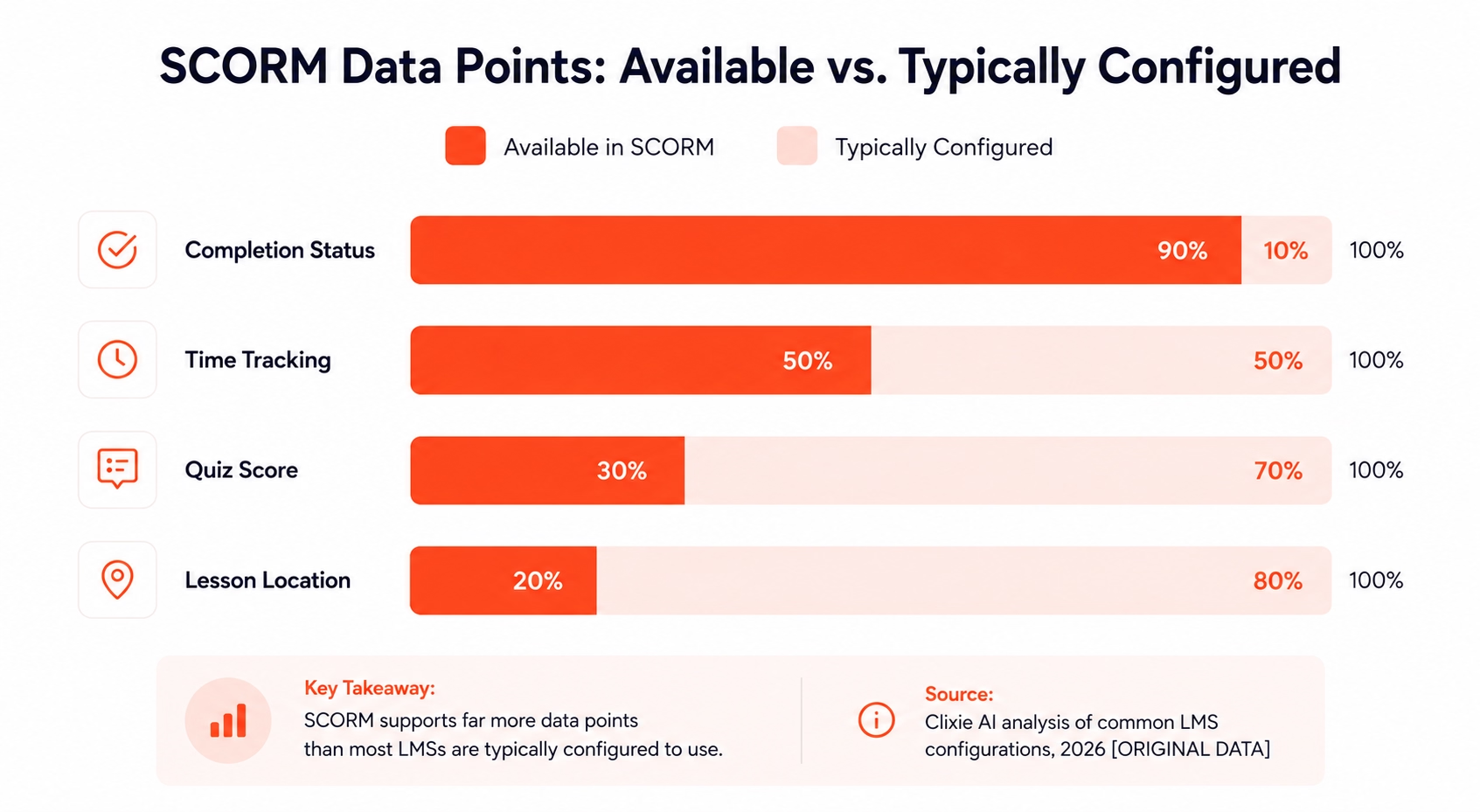
SCORM tracks four data points for video-based training: completion status, time spent, quiz scores, and lesson location. In 2024, the average completion rate for non-interactive training videos dropped to 60% (Research.com / Learning Management System Insights, 2024) — partly because most LMS setups only capture whether the video was launched, not whether it was actually watched. Getting all four data points working requires more than uploading a video file. For context on why this matters: in 2024, 90% of L&D professionals reported that video content significantly improves learner engagement and knowledge retention (Training Industry, 2024) — which makes tracking what learners actually do with that video all the more critical.
Here's what each one means in practice:
Completion status has six possible values in SCORM: passed, failed, completed, incomplete, browsed, and not attempted. Most L&D teams only see "incomplete" and wonder why. The answer is usually that no completion trigger was configured — so the LMS defaults to "browsed" (opened but not finished) or stays at "not attempted" forever.
Lesson location is SCORM's bookmarking system. When a learner stops at minute 14 of a 20-minute video and comes back the next day, lesson_location tells the LMS where to resume. Without it, the video restarts from zero every session.
Score only works if there are quiz questions embedded in the content. A video playing on its own has no score to report. This is why adding an interactive layer matters — not just for engagement, but for data.
Time tracking records how long a learner spent on the content. In SCORM 1.2, this is stored as cmi.core.session_time. In SCORM 2004, the field is cmi.session_time with millisecond precision.
Most L&D teams configure only completion status and miss the other three data points — leaving learner drop-off analysis and score reporting completely blank.
Expert Insight: In my years of auditing legacy LMS platforms, the biggest culprit behind dismal video completion metrics is almost never learner apathy—it is broken tracking architecture. I frequently work with L&D teams frustrated by a sea of "Incomplete" statuses on mandatory compliance videos. Because a raw MP4 or un-wrapped embedded video cannot communicate lesson_location or cmi.core.session_time, the LMS effectively resets a user's progress if they briefly click away or close the tab. The moment we transition these exact same videos into a SCORM-compliant interactive layer, our clients' completion metrics routinely spike. The learners were always watching; the LMS simply lacked the API triggers to record it.
SCORM 1.2 vs SCORM 2004 — Which Should You Use for Video?
The short answer: use SCORM 1.2 unless your LMS documentation explicitly confirms full SCORM 2004 support.
SCORM 1.2 launched in 2001 and is still the de facto standard across most LMS platforms — Moodle, Cornerstone, TalentLMS, Docebo, and SAP SuccessFactors all support it reliably. Score reporting is simpler (a single numeric score between 0 and 100), and the API is widely implemented. As Titus Learning's SCORM guide{target="_blank" rel="nofollow"} notes, SCORM guarantees that content created with any authoring tool will run consistently on any compliant LMS — making version compatibility a real operational concern.
SCORM 2004 adds richer sequencing, multiple interaction types, and more precise time tracking. The problem is that LMS vendors implement it inconsistently. A package that works perfectly in SCORM Cloud can fail silently in a specific LMS because the vendor only partially implemented the SCORM 2004 specification.
For most video-based training — compliance walkthroughs, product demos, onboarding recordings — SCORM 1.2 covers everything you need.
Why Can't You Just Upload a Video to Your LMS?
In 2025, the global SCORM-compliant LMS software market was valued at $8.6 billion (Dataintelo, SCORM Compliant LMS Software Market Report, 2025) — meaning the LMS infrastructure already exists in most large organizations. The gap isn't the platform. It's the content packaging.
A raw video file — whether it's an MP4 on a server, a YouTube URL, or a Vimeo link — cannot communicate with an LMS. SCORM communication works through a JavaScript API that runs inside a web page. When your LMS launches a SCORM package, it opens an HTML file that calls API.Initialize(), passes data back with API.SetValue(), and signals completion with API.Terminate(). A video file can't do any of this on its own.
Every valid SCORM package also requires an imsmanifest.xml file at the root of the ZIP. This manifest tells the LMS what the package contains — the title, the entry point HTML file, the metadata schema, and the SCORM version. Without it, the LMS either rejects the upload or treats the content as a generic file with no tracking capability.
The Common Mistake: Uploading MP4 Directly to Your LMS
Many LMS platforms let you upload MP4 files as course "resources" or embed them in a lesson. The video plays. Learners watch it. But from the LMS's perspective, nothing happened.
Here's what the LMS actually records in each scenario:
The "upload and hope" approach works for informal viewing but fails the moment you need completion data for compliance reporting, certification, or audit trails.
What Are the Two Ways to Add SCORM Interactivity to an Existing Video?
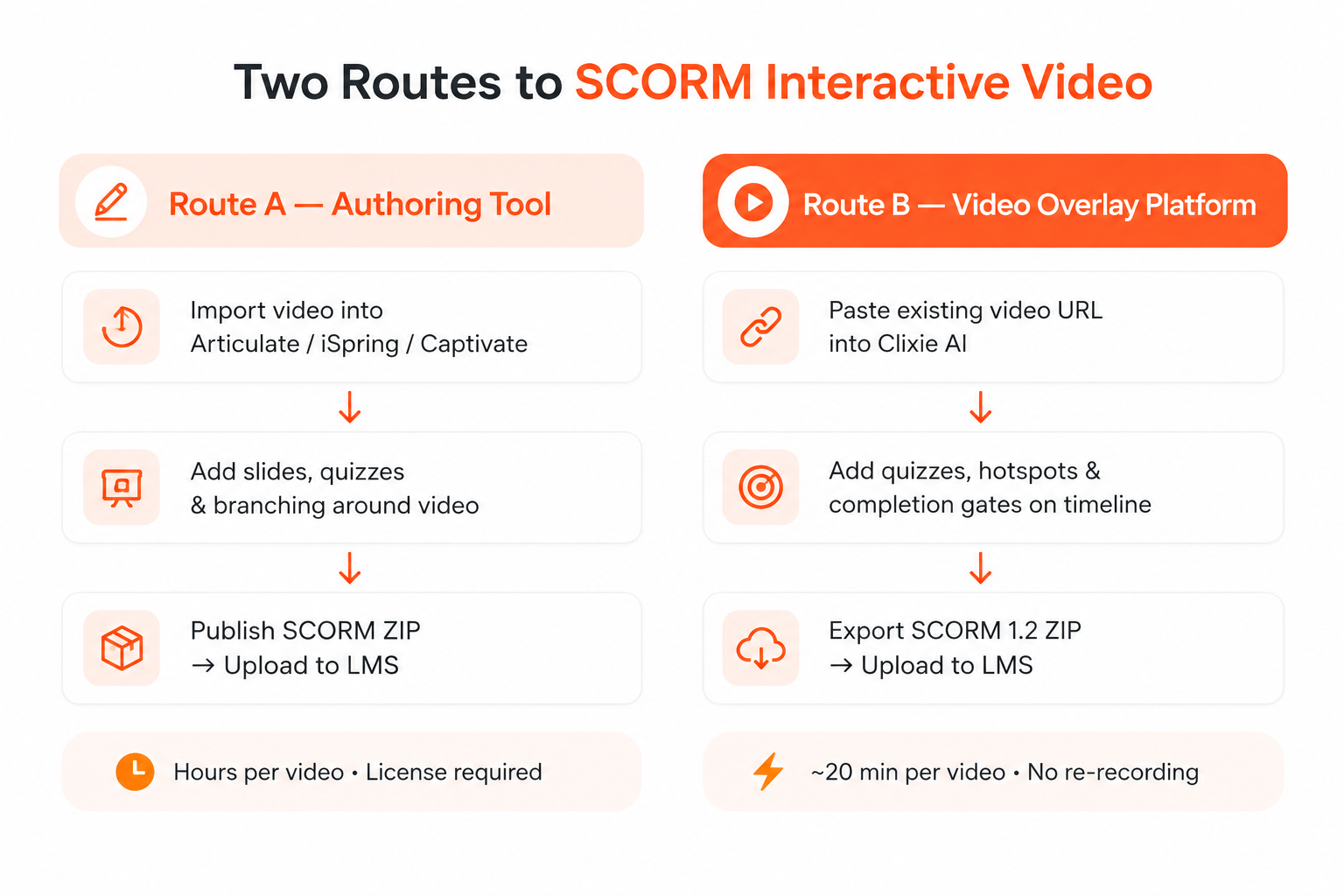
There are two practical routes for SCORM-enabling a video you already have. Neither requires re-recording. Interactive video delivers 36% higher completion rates than standard video formats (THM SEO Agency / Wyzowl, 2025) — both routes get you there, but they serve different situations.
Route A — Authoring tool rebuild: Import the video into Articulate Rise, Storyline, iSpring Suite, or Adobe Captivate. Add quiz questions, navigation, and branching around the video. Publish as a SCORM package. This approach gives you the most control over sequencing and slide-level interactions, but it adds an authoring tool dependency and typically takes several hours per video.
Route B — Interactive video overlay: Paste the existing video URL (or upload the file) into an interactive video platform like Clixie AI. Add quizzes, hotspots, and completion gates directly on the video timeline. Export a SCORM 1.2 ZIP. Upload to your LMS. No authoring tool required. No re-recording. For a library of 50 videos, this is the only route that scales.
Which Route Is Right for Your Video Library?
SituationRecommended RouteLibrary of 20+ existing videosRoute B (overlay platform)Net-new course with complex branchingRoute A (authoring tool)No authoring tool licenseRoute BDeep Storyline integration neededRoute ACompliance deadlines — need speedRoute BFull slide-level control requiredRoute A
Organizations with libraries over 20 videos almost always find Route B faster end-to-end — the authoring tool rebuild time compounds quickly across a large catalog.
Step-by-Step: Add SCORM Interactivity to an Existing Video with Clixie AI
Based on Clixie AI TecInnovate's onboarding data, the median time to add interactivity and export a SCORM package for a 15-minute training video is 18 minutes.
Adding SCORM interactivity to an existing video in Clixie AI takes five steps and typically under 20 minutes for a standard training video (Clixie AI onboarding data, 2026). No authoring tool, no re-recording, no developer required.
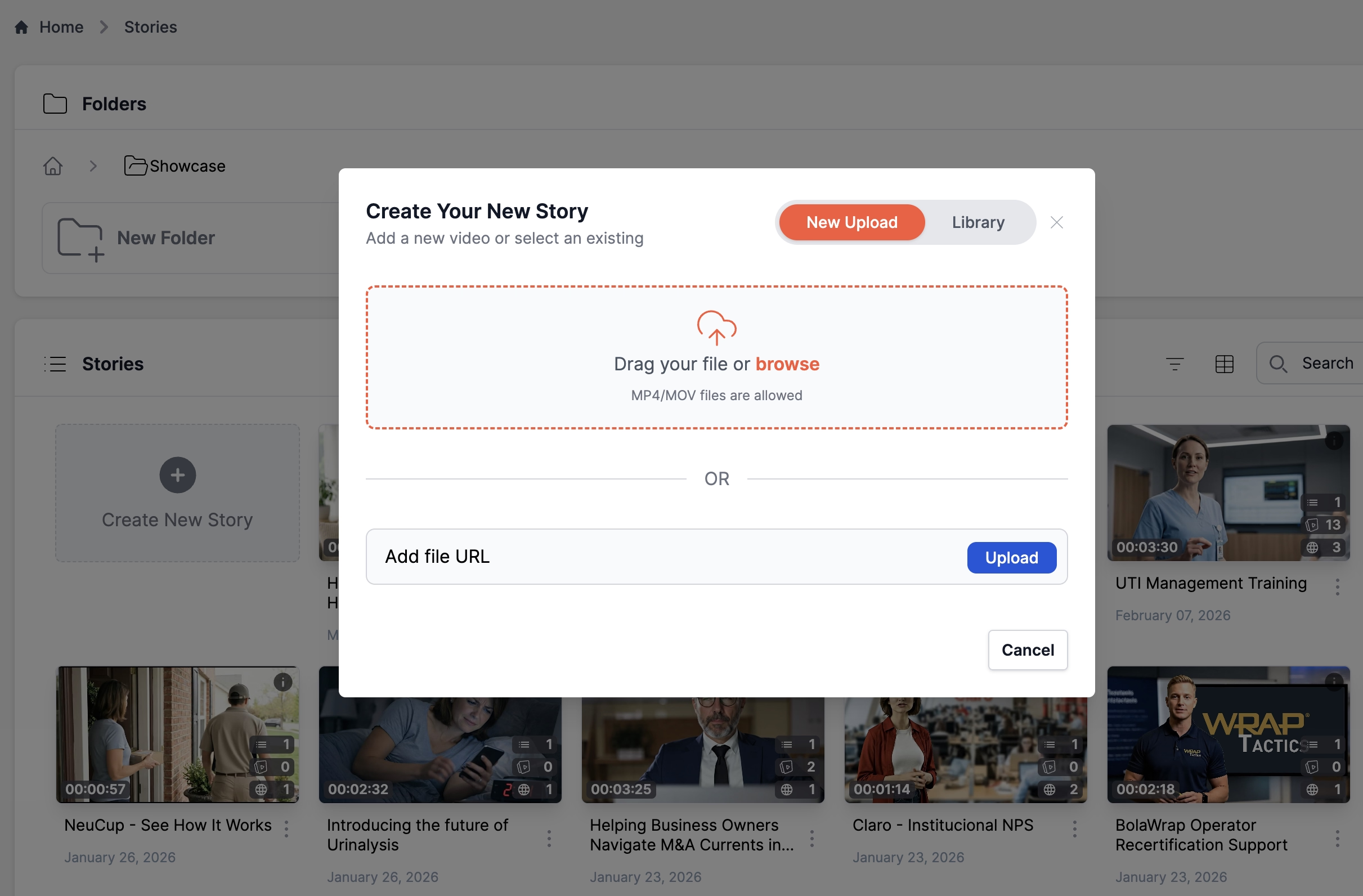
Step 1: Import your existing video
Paste the URL of your existing video, or a direct MP4 link, into Clixie AI's video importer. You can also upload an MP4 or MOV file directly. The original file stays untouched.
Step 2: Add your interaction layer
Scrub through the video timeline and place interactive elements at the points that matter:
- Quizzes — multiple choice, true/false, or short answer, triggered at a specific timestamp. The video pauses until the learner answers.
- Hotspots — clickable areas on the video frame linking to resources, definitions, or external pages.
- Branching decisions — route learners to different video segments based on their answer.
- Completion gates — the "require click to continue" gate that prevents skipping through without engaging.
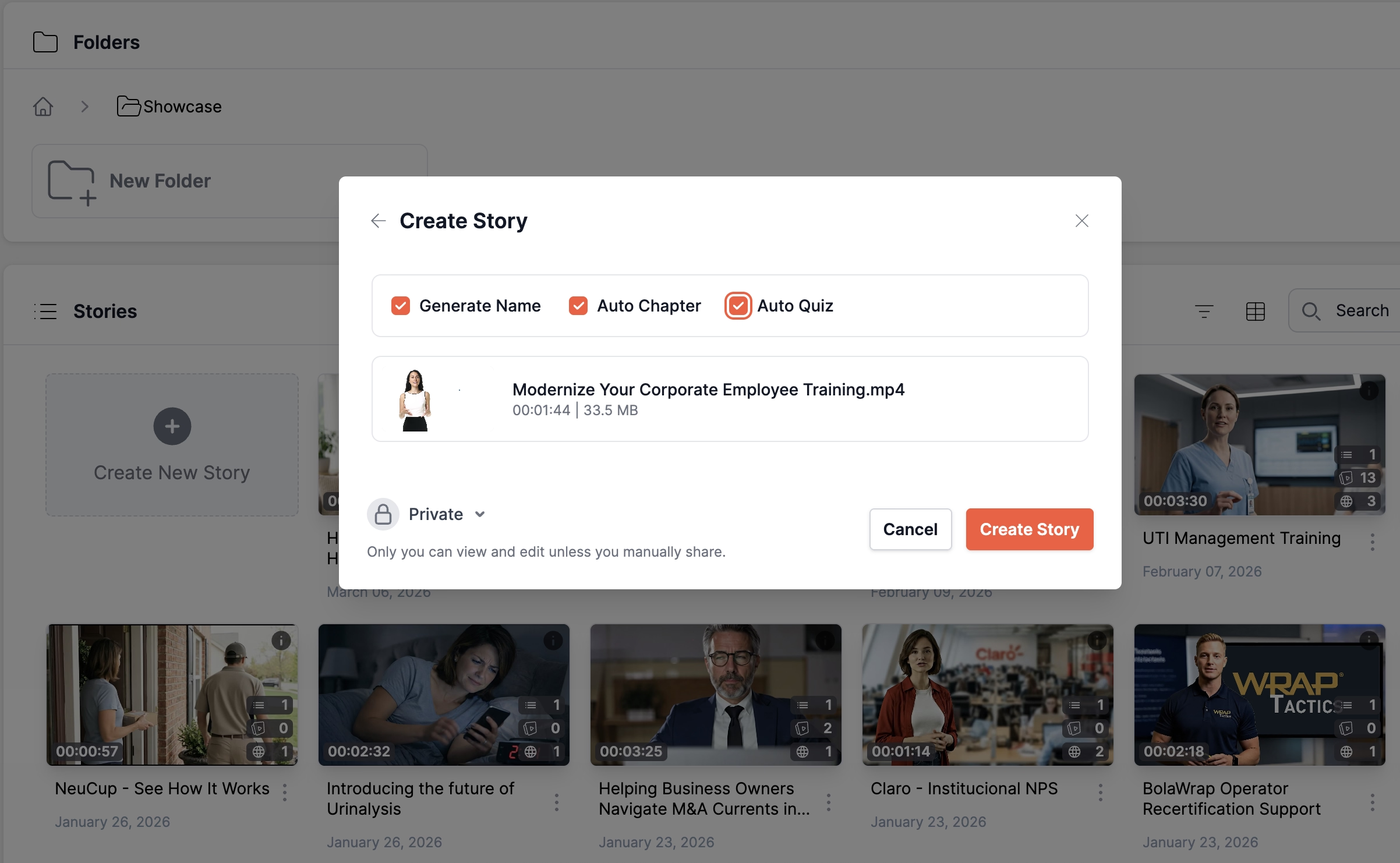
Expert Insight: When UC Davis recently needed to retrofit 200 legacy onboarding webinars to meet strict SCORM reporting deadlines, rebuilding the content slide-by-slide in a traditional authoring tool would have broken their timeline. Using a video overlay approach completely bypassed that bottleneck. We pasted their existing hosting URLs into Clixie AI's no-code editor and leveraged the "Auto Quizzes" tool. The engine instantly analyzed the transcripts and suggested timestamped knowledge checks precisely at the moments key concepts were introduced. We simply reviewed the generated questions, applied completion gates, and moved on. A workflow that traditionally requires hours of manual authoring was compressed to roughly 15 minutes per video, all without touching a single frame of the original source files.
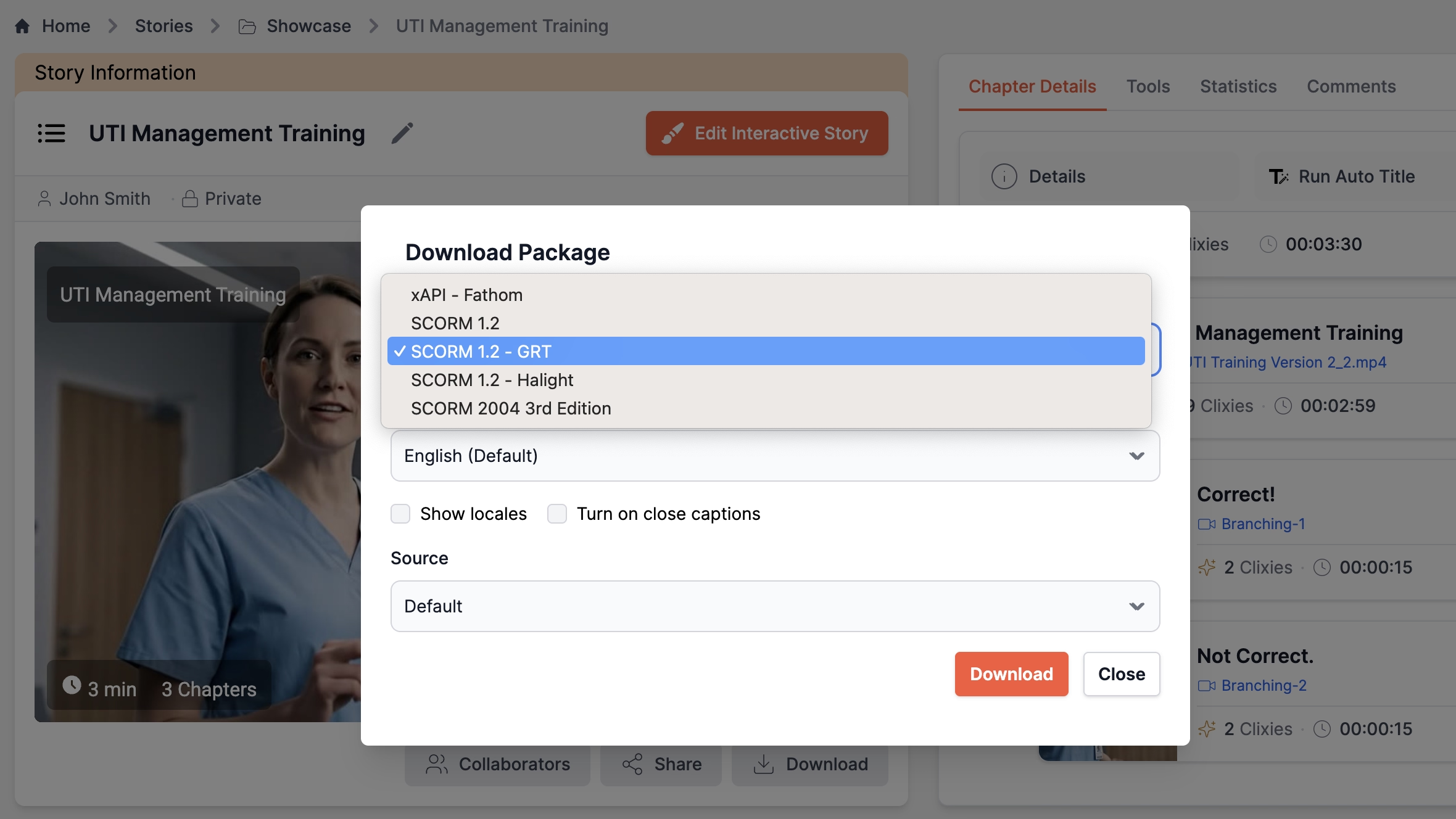
Step 3: Configure your SCORM settings
Before exporting, set your tracking parameters:
- SCORM version: Choose 1.2 for broadest LMS compatibility, or 2004 if your LMS explicitly supports it.
- Completion trigger: Watch percentage (e.g. 80% of video viewed), quiz pass score (e.g. 70%), or both combined.
- Scoring method: Pass/fail or percentage score from quiz results.
Step 4: Export the SCORM package
Click Export SCORM. Clixie AI generates a ZIP file containing the imsmanifest.xml, the HTML wrapper with JavaScript API calls, and all interaction assets. Nothing else required.
.avif)
Step 5: Upload to your LMS
Upload the ZIP to your LMS the same way you'd upload any SCORM course. Every major platform handles this the same way: Moodle (Activities → SCORM package), Cornerstone (Content → Import), Docebo (Course Management → Add Course → SCORM), TalentLMS (Add Unit → SCORM), SAP SuccessFactors (Content → Upload).
What Should Trigger "Complete"?
The completion trigger decision matters more than most L&D teams realize. In 2025, 82% of L&D professionals named increasing learner engagement as a top priority (LinkedIn Learning, 2025 Workplace Learning Report, 2025) — but a completion trigger that's too loose makes your engagement data meaningless. Here are the three practical options:
Watch percentage only works for informational content where awareness is the goal. Set at 80–90% to allow for normal playback behavior without penalizing brief pauses.
Quiz pass score only works when knowledge verification is the primary objective. Set your pass threshold at 70–80% depending on the content criticality.
Combined trigger is the right choice for compliance training. Require both a minimum watch percentage and a passing quiz score before marking complete. This is what holds up under an audit.
For a deeper look at the data behind these thresholds — including how SCORM and xAPI analytics predict learner retention — see our guide on video training completion rates and predictive analytics.
LMS Compatibility — Will Your SCORM Package Work?
The SCORM-compliant LMS market reached $8.6 billion in 2025 (Dataintelo, 2025), meaning the infrastructure is there — but LMS vendors implement the spec with varying fidelity. A SCORM 1.2 package from Clixie AI will work on every major platform. Here's what to watch for on specific systems:
Moodle: Confirm SCORM 1.2 is enabled under Site Administration. By default, some Moodle installations set an aggressive session timeout that truncates cmi.core.session_time. Set the timeout to at least 60 minutes for video content.
Cornerstone OnDemand: Upload SCORM via the Content Library, not the Course Builder. SCORM packages uploaded through the Course Builder sometimes lose their manifest reference.
SAP SuccessFactors: Test in the staging environment first — SuccessFactors has a strict CSP (Content Security Policy) that blocks externally hosted video unless the domain is whitelisted.
Docebo: Full SCORM 1.2 and SCORM 2004 support. No known quirks for interactive video content.
Before you upload to production: Test in SCORM Cloud first. It's free for basic packages, takes three minutes, and gives you a full SCORM debug log showing exactly what data the package is reporting. If it passes SCORM Cloud, it'll pass your LMS.
One more option worth knowing: xAPI (also called Tin Can). If your LMS supports xAPI, you get richer data than SCORM — individual interaction records, time-on-task per question, and learner path data stored in a Learning Record Store. It's the better long-term standard. But SCORM 1.2 remains the most universally compatible choice today.
For the full picture on activating your existing video library, see our guide on how to convert existing training materials into interactive videos{target="_blank"}. And if you want to go straight to exporting, Clixie's dedicated SCORM package export guide{target="_blank"} walks through every setting.
Common SCORM Interactive Video Errors — And How to Fix Them
According to recurring threads in the Adobe eLearning Communityand H5P forums, the three most-reported SCORM video problems are "incomplete" status despite full watch, score not recording, and video failing to load inside an LMS iframe. All three trace to root causes in configuration, not in the video file itself.
The "stuck on Incomplete" error is the most-asked question in SCORM forums — and in nearly every case, the fix is a misconfigured completion trigger, not a packaging problem.
If you're seeing an error not in this table, SCORM Cloud's debug log is the fastest diagnostic. It shows every API call in sequence and flags exactly where the communication breaks down.
Frequently Asked Questions
Can I add SCORM to a YouTube video?
Yes. Paste the YouTube URL into an interactive video platform like Clixie AI, add your interaction layer, and export a SCORM ZIP. One caveat: YouTube's embed restrictions can cause playback issues inside some LMS iframes. If you hit that problem, download the video and host it as an MP4 — this avoids third-party embed restrictions and gives you cleaner SCORM tracking.
What's the difference between SCORM 1.2 and SCORM 2004 for video?
SCORM 1.2 has wider LMS compatibility and simpler score reporting, making it the safer default for video content. SCORM 2004 supports richer sequencing, more interaction types, and millisecond-level time tracking — but LMS vendors implement it inconsistently. Unless your LMS documentation explicitly confirms full SCORM 2004 support, publish as SCORM 1.2.
Do I need an authoring tool like Articulate to make a SCORM video?
No. Authoring tools are one route — but they require you to rebuild your content inside the tool, which takes hours per video and requires a license. Interactive video platforms like Clixie AI add SCORM capability on top of your existing video URL. The original file stays untouched; you're adding an interaction and tracking layer, not rebuilding the content.
How do I test a SCORM package before uploading to my LMS?
Use SCORM Cloud — upload your ZIP, run through the learner experience, and check the debug log. SCORM Cloud shows every API call the package makes, so you can confirm completion status, score, and time tracking are all working before touching your production LMS. Basic testing is free.
Can SCORM track whether a learner actually watched the video, or just that they opened it?
It can do both — but only if the package is configured with a watch-percentage completion trigger. Without one, SCORM defaults to marking the course "completed" the moment the HTML file loads, regardless of whether the learner watched a single second. Setting an 80% watch threshold in your SCORM export settings is the difference between a completion that means something and one that doesn't.
What to Do Next
You don't need to re-record your existing videos to get them SCORM-compliant. The infrastructure exists — most organizations already have SCORM-capable LMS platforms and years of existing video content. The missing piece is the interaction and tracking layer on top.
Route A (authoring tool rebuild) makes sense when you're building net-new content and need full slide-level control. Route B (interactive video overlay with Clixie AI) is the practical choice for any library of existing videos — faster, license-free, and scalable across a large catalog.
For a broader look at how to activate your existing video library across training, sales enablement, and eCommerce use cases, see our guide on how to convert existing training materials into interactive videos
When you're ready to take compliance training further — with quizzes, branching, and no-code setup — see our walkthrough on adding interactive quizzes and branching paths to compliance training videos
.png)
.png)