


10 Examples of Interactivity to Boost User Engagement
Discover 10 powerful examples of interactivity in digital design. Learn how to use microinteractions, gamification, and AR to turn passive users into active participants.



Introduction
Want to transform your digital presence from a passive viewing experience into an active, memorable journey? The secret lies in interactive design.
When users actively participate in a digital environment—rather than just scrolling and skimming—retention, engagement, and conversion rates soar. Whether you are designing a SaaS platform, an educational hub, or a marketing campaign, interactive elements dictate how users feel about your brand.
Based on current UI/UX best practices, here are 10 powerful examples of interactivity in digital design, complete with the pros, cons, and implementation strategies you need to execute them effectively.
1. Drag and Drop Interfaces
A drag-and-drop interface is a direct manipulation technique that allows users to click, hold, and move virtual objects across a screen. By mimicking how we handle physical objects in the real world, it significantly reduces cognitive load.
The Benefits
- Provides an intuitive, real-world feel to digital tasks.
- Speeds up complex processes like file organization or dashboard customization.
- Offers immediate, satisfying visual feedback.
The Drawbacks
- Can be challenging for users with motor impairments.
- Often difficult to execute flawlessly on smaller mobile screens.
- Accidental drops can cause frustration if a clear "undo" option isn't available.
Best Practices for Implementation
- Use clear visual cues (like a change in cursor or highlighted borders) to indicate draggable elements.
- Implement "snap-to-grid" or magnetic alignment for precision.
- Always provide a keyboard alternative to ensure accessibility compliance.
Seen in action: Trello's project management boards, Figma's design canvas, and standard desktop file management.
2. Hover Effects and Microinteractions
Microinteractions are subtle, momentary animations that occur when a user interacts with a specific element. Hover effects—where a button changes color or a tooltip appears when the cursor rests on it—are the most common form.
The Benefits
- Guides user attention to actionable elements.
- Improves perceived performance by providing instant visual feedback.
- Adds a layer of polish and brand personality to the interface.
The Drawbacks
- Overuse can create a distracting, chaotic user experience.
- Complex animations can slow down page load times.
- Hover states do not naturally translate to touch-based mobile devices.
Best Practices for Implementation
- Keep animations short and snappy (under 300 milliseconds).
- Use easing functions for natural, fluid motion.
- Prioritize functionality over decoration; every animation should serve a clear purpose.
Seen in action: GitHub’s subtle button state changes, Stripe’s interactive payment forms, and Slack’s emoji reactions.
3. Progressive Disclosure
Progressive disclosure is a UI design strategy that sequences information and actions across several screens. Instead of overwhelming the user with every available option at once, it presents only the essential information upfront, revealing advanced features only when requested.
The Benefits
- Dramatically reduces interface clutter and cognitive overload.
- Accommodates both beginners (who need simplicity) and power users (who want advanced tools).
- Optimizes limited screen real estate, especially on mobile.
The Drawbacks
- Crucial features can be missed if hidden too deeply.
- Requires users to click more times to reach specific tools.
- Demands rigorous user testing to perfect the information hierarchy.
Best Practices for Implementation
- Use universally recognized icons (like arrows or plus signs) to indicate hidden content.
- Feature the top 20% of most-used tools prominently.
- Utilize accordions, tabs, and modal dialogs to organize secondary information cleanly.
Seen in action: Gmail’s expandable "Compose" window and Amazon’s collapsible product specification sections.
4. Real-Time Collaboration Features
Real-time collaboration transforms single-player applications into dynamic, shared workspaces. It allows multiple users to edit, comment, and brainstorm simultaneously within the same digital environment.
The Benefits
- Eliminates version control nightmares and endless email chains.
- Fosters a sense of shared presence and teamwork.
- Massively accelerates project timelines and approvals.
The Drawbacks
- Requires robust backend infrastructure to prevent lag and handle data syncing.
- Can become visually chaotic if too many users are editing at once.
- Heavily dependent on a stable, high-speed internet connection.
Best Practices for Implementation
- Use distinct colors and name tags for live cursors so users know who is doing what.
- Provide granular permission controls (View, Comment, Edit).
- Implement a robust offline mode that smoothly syncs changes once reconnected.
Seen in action: Google Docs' simultaneous editing, Figma’s multiplayer design canvas, and Miro’s virtual whiteboards.
5. Gamification Elements
Gamification applies game-design mechanics—like points, badges, leaderboards, and progress bars—to non-game environments. It taps into the human psychology of achievement and competition to drive user behavior.
The Benefits
- Spikes motivation and daily active usage.
- Turns mundane tasks (like filling out a profile) into rewarding experiences.
- Encourages community building through social sharing and leaderboards.
The Drawbacks
- Can feel manipulative or gimmicky if not aligned with actual user goals.
- Over-reliance on extrinsic rewards can kill long-term intrinsic motivation.
- Highly competitive leaderboards can discourage new or casual users.
Best Practices for Implementation
- Focus on visualizing meaningful progress, not just arbitrary point accumulation.
- Start simple and gradually introduce more complex challenges.
- Offer collaborative goals alongside competitive ones to build community.
Seen in action: Duolingo’s daily streaks, LinkedIn’s profile completion meter, and Fitbit’s activity badges.
6. Voice User Interface (VUI)
Voice User Interfaces allow users to control systems and access information using natural speech. Powered by Natural Language Processing (NLP), VUI shifts the interaction paradigm from screen-tapping to hands-free conversation.
The Benefits
- Enables true hands-free, eyes-free multitasking.
- Highly accessible for users with visual or motor impairments.
- Lowers the tech barrier for users uncomfortable with complex visual menus.
The Drawbacks
- Privacy concerns regarding "always listening" microphones.
- Struggles with heavy accents, background noise, and complex queries.
- Can cause social friction when used in quiet public spaces.
Best Practices for Implementation
- Design for natural conversation flows, not rigid keyword commands.
- Provide clear audio or visual feedback that the system is actively listening.
- Program graceful error handling ("I didn't quite catch that. Did you mean...?") rather than abrupt failures.
Seen in action: Apple’s Siri, Amazon’s Alexa, and modern automotive infotainment systems.
7. Augmented Reality (AR) Interactions
Augmented Reality overlays digital information, 3D objects, or interfaces onto the physical world through a camera lens. It bridges the gap between digital convenience and physical context.
The Benefits
- Provides unmatched spatial understanding (e.g., seeing how furniture fits in a room).
- Creates highly immersive and shareable brand experiences.
- Reduces purchase hesitation in e-commerce by allowing "virtual try-ons."
The Drawbacks
- Often requires modern hardware, draining battery life quickly.
- Can be disorienting or cause motion sickness for some users.
- Requires perfect lighting and clear surfaces for accurate tracking.
Best Practices for Implementation
- Provide a clear, on-screen tutorial on how to scan the room or surface.
- Ensure 3D models are optimized for mobile to prevent lag.
- Design with user safety in mind, ensuring they remain aware of their physical surroundings.
Seen in action: IKEA Place’s furniture visualizer, Sephora’s Virtual Artist, and Pokémon GO.
8. Infinite Scroll and Dynamic Loading
Infinite scroll seamlessly loads new content as the user scrolls down the page, eliminating the need for traditional pagination (clicking "Next Page").
The Benefits
- Creates a frictionless browsing experience that hooks attention.
- Perfectly suited for mobile devices and touch-based swiping.
- Dramatically increases time-on-site for content-heavy platforms.
The Drawbacks
- Makes it nearly impossible for users to reach the website footer.
- Can cause severe memory bloat and browser crashes if not optimized.
- Makes it difficult for users to bookmark or return to a specific piece of content.
Best Practices for Implementation
- Use "virtual scrolling" (unloading content that is no longer on screen) to save memory.
- Display skeleton screens or clear loading spinners to indicate more content is coming.
- Consider a "Load More" button after a certain depth to give users a natural stopping point.
Seen in action: TikTok’s video feed, Instagram’s timeline, and Pinterest’s discovery grid.
9. Chatbots and Conversational Interfaces
Chatbots and live chat widgets allow users to have real-time, two-way conversations with a brand directly on the website or app. They simulate human interaction to answer questions, guide purchases, and resolve issues instantly.
The Benefits
- Provides 24/7, immediate assistance without making users dig through an FAQ page.
- Personalizes the user journey by offering contextual product recommendations.
- Significantly reduces the workload for human customer support teams.
The Drawbacks
- Can frustrate users if the bot lacks context or loops the same answers.
- Poorly written bot scripts can feel robotic and impersonal.
- Requires ongoing maintenance, training, and script optimization.
Best Practices for Implementation
- Always provide a seamless, obvious "escape hatch" to speak with a human agent.
- Be transparent; let users know immediately that they are interacting with an AI bot.
- Anticipate user needs by offering quick-reply buttons for the most common questions.
Seen in action: Intercom's customer support widgets, HubSpot's automated lead-qualification flows, and Sephora's messaging bots.
10. Interactive Quizzes and Calculators
Interactive assessments, personality quizzes, and ROI calculators require users to input their own data or preferences to receive highly personalized, immediate results.
The Benefits
- Functions as a powerful lead generation tool, trading personalized insights for an email address.
- Highly shareable on social media, driving organic viral traffic.
- Helps segment your audience based on the exact pain points they select.
The Drawbacks
- Users will abandon the tool if it asks for too much sensitive information too soon.
- Gatekeeping final results behind an email capture can irritate users and cause drop-offs.
- Calculators require complex backend logic and accurate data to be genuinely useful.
Best Practices for Implementation
- Keep the interaction brief—ideally under 5 to 7 questions or data points.
- Use a progress bar so users know exactly how close they are to their results.
- Provide immediate, actionable value before you ask the user to subscribe or buy.
Seen in action: BuzzFeed's personality quizzes, HubSpot's Website Grader, and Zillow's mortgage calculators.
11. Interactive Video Experiences
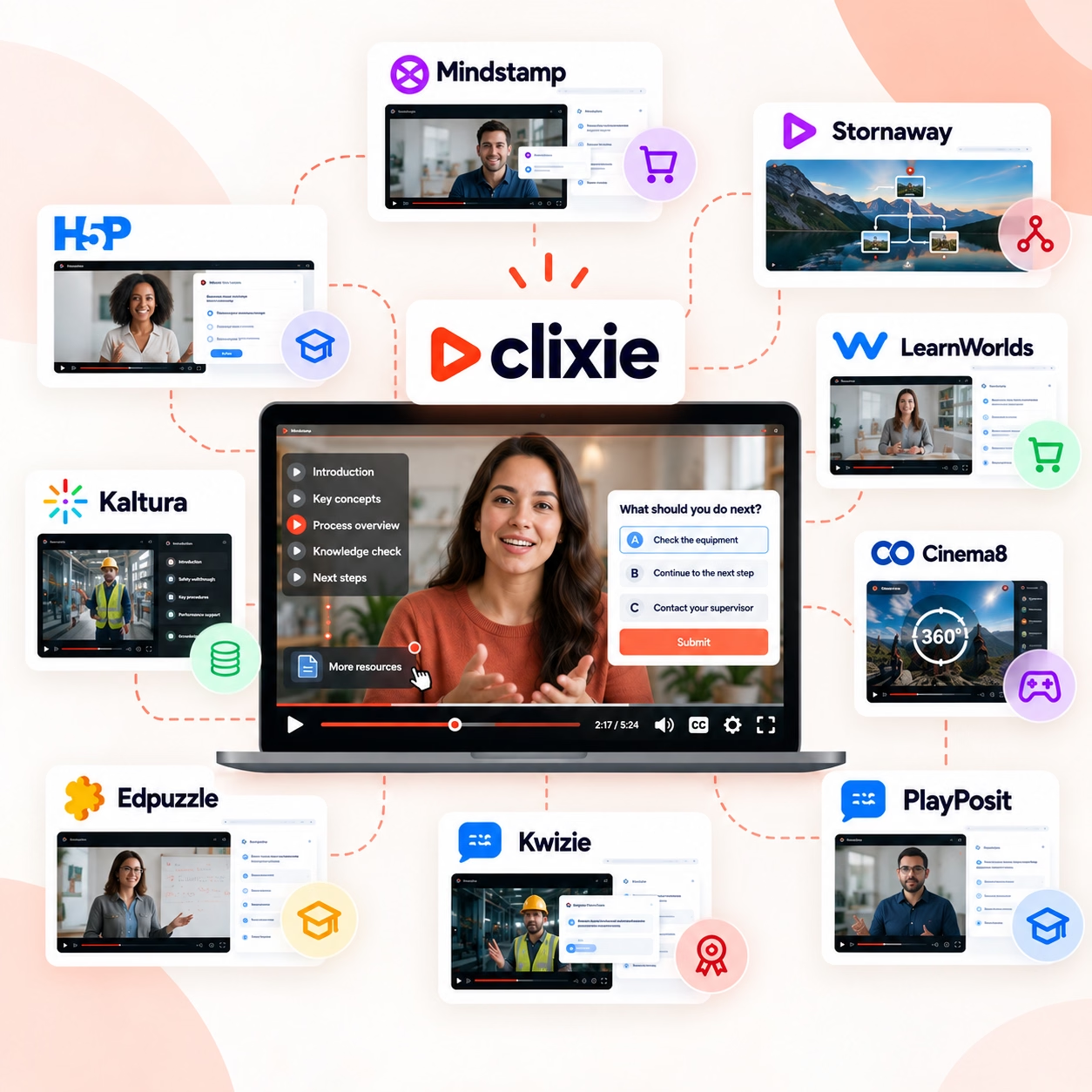
Interactive video fundamentally changes the nature of video consumption from a passive "lean-back" experience to an active "lean-forward" one. By embedding clickable hotspots, branching narratives, shoppable links, and in-video quizzes directly into the video player, viewers actively control the content they see and engage with.
The Benefits
- Unprecedented Engagement: Viewers must pay attention to make choices, which dramatically increases watch time and completion rates.
- Frictionless Conversions: Shoppable videos allow users to click and buy a product directly from the video stream without navigating to a separate landing page.
- Personalized Journeys: Branching narratives (the "choose your own adventure" model) let users self-segment, ensuring they only watch content highly relevant to their specific needs.
The Drawbacks
- Higher Production Costs: Requires meticulous storyboard planning, shooting multiple video variations, and using premium interactive hosting platforms (like Mindstamp or Vimeo Interactive).
- Mobile Touch Constraints: Clickable hotspots can be frustrating to tap on small mobile screens if not sized correctly.
- Narrative Disruption: Too many pop-ups, links, or required choices can disrupt the flow of the video and annoy the viewer.
Best Practices for Implementation
- Onboard the Viewer Early: Explicitly tell the viewer within the first 5 to 10 seconds that the video is interactive and they will need to click or tap.
- Design for the "Fat Finger": Ensure all clickable hotspots are large enough and spaced far enough apart to be easily tapped on a smartphone.
- Keep Interactions Purposeful: Only add interactive elements that genuinely enhance the story, provide deeper context, or offer a direct path to purchase.
Seen in action: Netflix’s Black Mirror: Bandersnatch, shoppable ad formats on TikTok, and interactive B2B product demos.
Elevating the User Experience
The digital landscape has moved far beyond static text and flat images. Incorporating elements like progressive disclosure, conversational interfaces, and gamification transforms passive consumers into active participants. These aren't just design trends—they are fundamental strategies for building digital products that users genuinely want to engage with.
Mastering these interactive approaches is crucial for staying competitive. By strategically implementing these tools, you capture attention, drive conversions, and build lasting relationships with your audience.
Frequently Asked Questions (FAQ) About Interactive Design
What is interactivity in UI/UX design?
Interactivity in UI/UX design refers to elements within a digital product that require a user to take a physical action—such as clicking, swiping, dragging, or speaking—to trigger a response from the system. It transforms a passive viewing experience into a two-way conversation between the user and the interface.
Why is interactivity important for user engagement?
Interactivity forces the user to actively pay attention. When users interact with a webpage or app through features like quizzes, calculators, or drag-and-drop tools, they invest time and effort into the experience. This psychological investment significantly increases time-on-page, boosts brand recall, and dramatically improves conversion rates compared to static content.
What is the difference between interactivity and animation?
Animation is passive; it happens to the user (like a video playing or a loading spinner looping). Interactivity is active; it happens because of the user (like a button changing color when hovered over, or a 3D model rotating when swiped). Good interactive design often uses subtle animations to provide visual feedback after a user takes an action.
Does interactive content improve SEO?
Yes, interactive content indirectly boosts traditional SEO and directly benefits Answer Engine Optimization (AEO). Search engines monitor user behavior metrics like "dwell time" (how long someone stays on your page) and bounce rate. Because interactive elements like endless scroll, calculators, and gamification keep users on the page longer and encourage clicking, they send strong positive signals to search algorithms that your content is valuable.
.png)
.png)



.avif)
